Amazon AWS
AWS Organization
Landing Zone
The Vector Digital Platforms AWS Organization is built following the landing zone solution schema. A landing zone is a well-architected, multi-account AWS environment that’s based on security and compliance best practices.
To easily manage the landing zone solution, we’re using the AWS Control Tower service that automates the setup of a new landing zone using best-practices blueprints for identity, federated access, and account structure.
The landing zone set up by AWS Control Tower is managed using a set of mandatory and strongly recommended guardrails, which customers select through a self-service console experience to ensure accounts and configurations comply with our policies.
Some landing zone blueprints that are automatically implemented in our landing zone include:
-
The creation of a multi-account environment using AWS Organizations
-
Centralize logging from AWS CloudTrail, and AWS Config stored in Amazon S3
-
Enable cross-account security audits using AWS IAM and AWS SSO
Enabled Guardrails
In order to maintain a set of security and configuration best-practices, the following mandatory guardrails are enabled in our customers accounts:
-
Disallow configuration changes to CloudTrail
-
Integrate CloudTrail events with CloudWatch Logs
-
Enable CloudTrail in all available regions
-
Enable integrity validation for CloudTrail log file
-
Disallow changes to CloudWatch set up by AWS Control Tower
-
Disallow deletion of AWS Config aggregation authorization
-
Disallow changes to AWS Config aggregation set up by AWS Control Tower
-
Disallow configuration changes to AWS Config
-
Enable AWS Config in all available regions
-
Disallow changes to AWS Config Rules set up by AWS Control Tower
-
Disallow changes to IAM roles set up by AWS Control Tower
-
Disallow changes to Lambda functions set up by AWS Control Tower
-
Disallow changes to CloudWatch Logs log groups
-
Disallow changes to Amazon SNS set up by AWS Control Tower
-
Disallow changes to Amazon SNS subscriptions set up by AWS Control Tower
Single Sign-On
The Vector Digital Platforms AWS Organization has a Single Sign-On solution that allows existing VectorITC users to sign-in to any existing AWS child account by using their corporate credentials. To achieve this Single Sign-On, there are some components deployed in the environment:
-
vdig-netw (125019457315) account
-
An AWS Transit Gateway deployed in eu-west-1 region in the vdig-netw account.
-
An AWS Transit Gateway VPN Attachment to VectorITC on-premise network (with firewall rules that allows traffic to the corporate Microsoft Active Directory servers)
-
-
Vector IM (190761377083) root account
-
An AWS Directory Service AD Connector
-
Connected directory domain: vectoritcgroup.com
-
Connector account username: adconnectorservice
-
Existing DNS servers: 10.202.14.12 and 10.70.4.229
-
-
AWS SSO using the previously listed AD Connector service as identity source
-
-
VectorITC Active Directory:
-
An Active Directory Organizational Unit (OU) with delegated permissions
-
An Active Directory user group that allow group members to create and groups and modify nested user group memberships
-
Granting access to AWS Accounts
Access to any new or existing account in the AWS Organization is granted when the required user is member of one or multiple VectorITC Active Directory user groups, and those user groups have a provisioned AWS SSO Permission Set.
Creating Active Directory user groups
Before attempting to create Active Directory user groups, make sure you met the following pre-requisites:
-
You are member of the
CN=AWS-admin,OU=AWS-VDP,OU=AppExternos,DC=vectoritcgroup,DC=comdelegated administrators user group. -
Your computer is connected to the VectorITC network (office or VPN connection)
-
Your computer have Microsoft RSAT (Remote Server Administration Tools) installed
-
You have downloaded the group creation PowerShell helper script (optional)
If pre-requisites are met, you can create the required user groups making sure to follow the naming and description conventions:
-
User group name:
AWS-{project}-{environment}-{permission-set} -
User group description:
Usuarios con el PermissionSet de {permission-set} sobre la cuenta de AWS {project}-{environment}
Take in mind that you should deploy at least the following user groups for the most common permission sets:
-
Administrators
-
Auditors
-
PowerUsers
-
Operators
Assign permissions in AWS Accounts
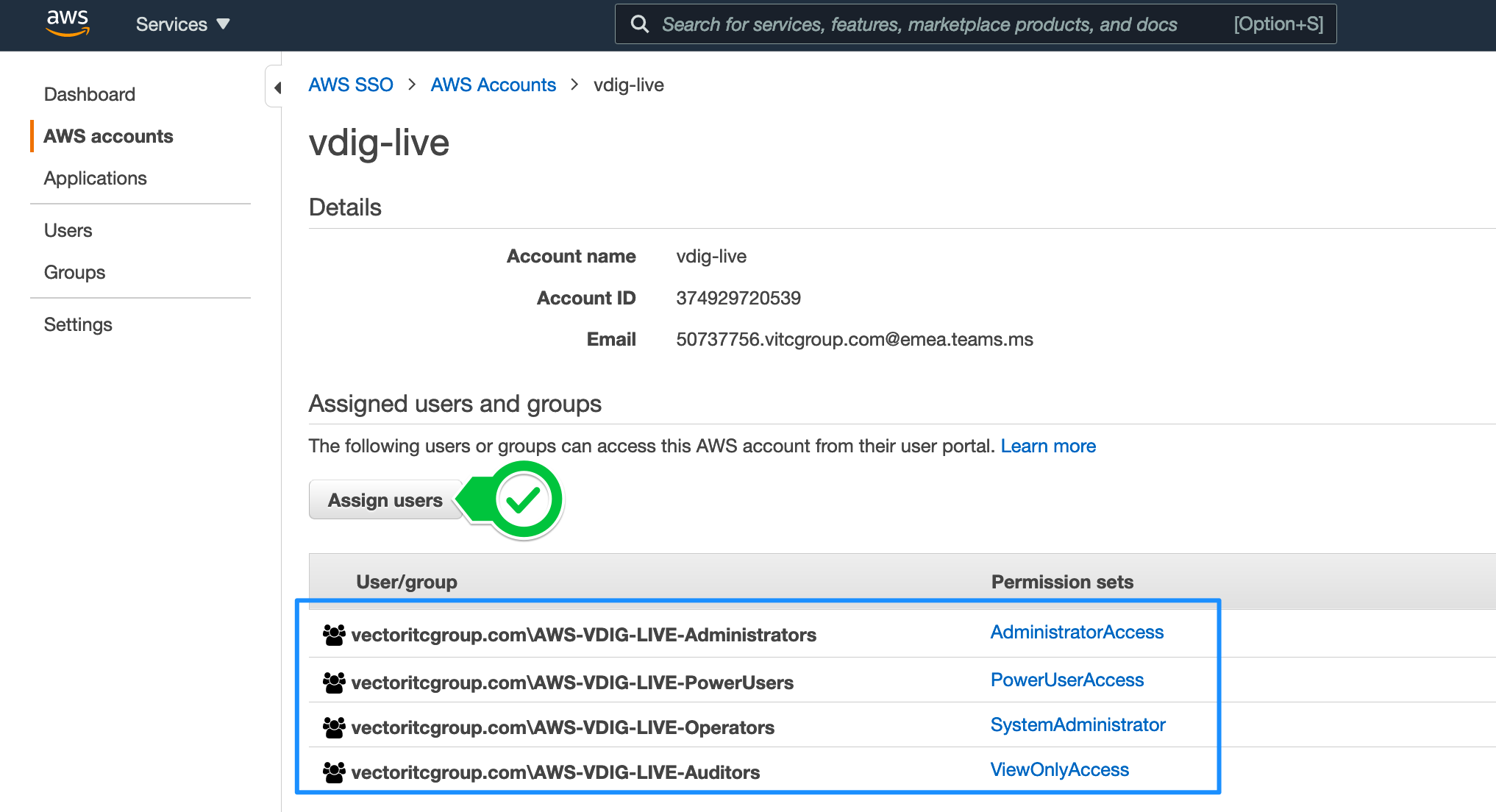
Sign-in to the Vector IM (190761377083) root account and go to AWS SSO Accounts dashboard.
Assign the required PermissionSets to the Active Directory user groups as seen on the next screenshot: